> ## Documentation Index
> Fetch the complete documentation index at: https://docs.neynar.com/llms.txt
> Use this file to discover all available pages before exploring further.

# Create a Farcaster Client with Next.js

> This guide will look at creating a Farcaster client using Next.js and the Neynar React SDK.

For this guide, we'll go over:

<CardGroup>
  <Card title="Setting up Sign-in with neynar" href="/docs/how-to-create-a-client#setting-up-sign-in-with-neynar" icon="square-1" iconType="solid" horizontal />

  <Card title="Building the user feed" href="/docs/how-to-create-a-client#building-the-feed" icon="square-2" iconType="solid" horizontal />

  <Card title="Building channels feed" href="/docs/how-to-create-a-client#building-the-channels-list-and-channel-feed" icon="square-3" iconType="solid" horizontal />

  <Card title="Building user profiles" href="/docs/how-to-create-a-client#building-user-profiles" icon="square-4" iconType="solid" horizontal />
</CardGroup>

Before we begin, you can access the [complete source code](https://github.com/avneesh0612/neynar-client) for this guide on GitHub.

Let's get started!

## Creating the app

### Setting up the project

Create a new next.js app using the following command:

<CodeGroup>
  ```powershell PowerShell theme={"system"}
  npx create-next-app app-name
  ```
</CodeGroup>

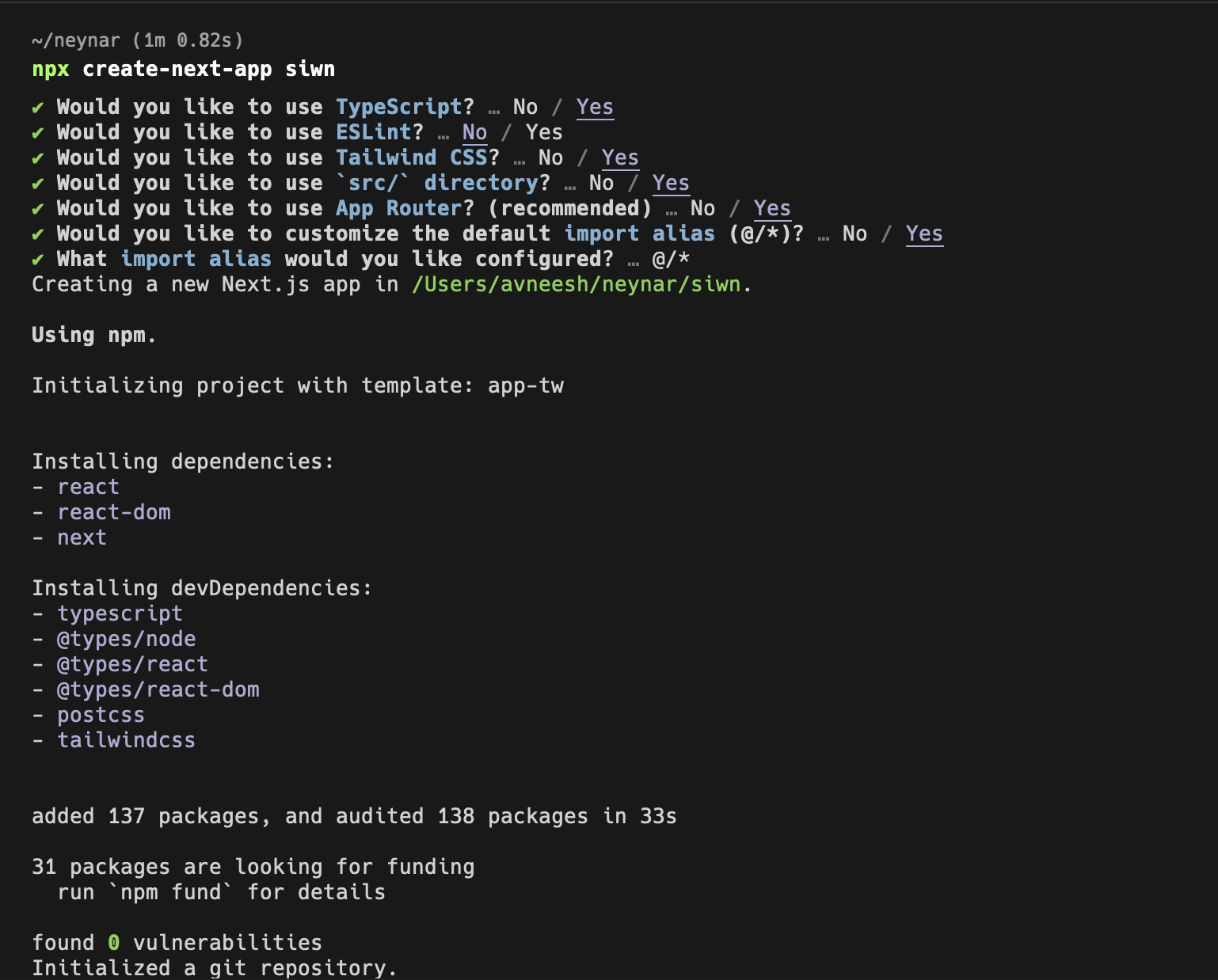
You can choose the configuration based on your personal preference, I am using this config for the guide:

<Frame>
  <img src="https://mintcdn.com/neynar/4PNY113y9N9T-r9z/images/docs/c0af43f-image.png?fit=max&auto=format&n=4PNY113y9N9T-r9z&q=85&s=b9d898c07a54e7cef78e019a01984d78" alt="Create Next.js app" width="1538" height="1238" data-path="images/docs/c0af43f-image.png" />
</Frame>

Once the app is created, install the packages that we are going to need for the command:
<CodeGroup>
  ```powershell npm theme={"system"}
  npm i @neynar/react @neynar/nodejs-sdk
  ```

  ```powershell yarn theme={"system"}
  yarn add @neynar/react @neynar/nodejs-sdk
  ```

  ```powershell bash theme={"system"}
  bun add @neynar/react @neynar/nodejs-sdk
  ```
</CodeGroup>

Once the dependencies are installed you can open it in your favourite and we can start working on the client!

### Setting up Sign-in with neynar

Head over to the `layout.tsx` file and wrap your app in a `NeynarContextProvider` like this:

<CodeGroup>
  ```typescript layout.tsx theme={"system"}
  "use client";

  import "./globals.css";
  import { NeynarContextProvider, Theme } from "@neynar/react";
  import "@neynar/react/dist/style.css";

  export default function RootLayout({
    children,
  }: Readonly<{
    children: React.ReactNode;
  }>) {
    return (
      <html lang="en">
        <NeynarContextProvider
          settings={{
            clientId: process.env.NEXT_PUBLIC_NEYNAR_CLIENT_ID || "",
            defaultTheme: Theme.Dark,
            eventsCallbacks: {
              onAuthSuccess: () => {},
              onSignout() {},
            },
          }}
        >
          <body>{children}</body>
        </NeynarContextProvider>
      </html>
    );
  }
  ```
</CodeGroup>

We are passing some settings here like `clientId`, `defaultTheme` and `eventsCallbacks`.

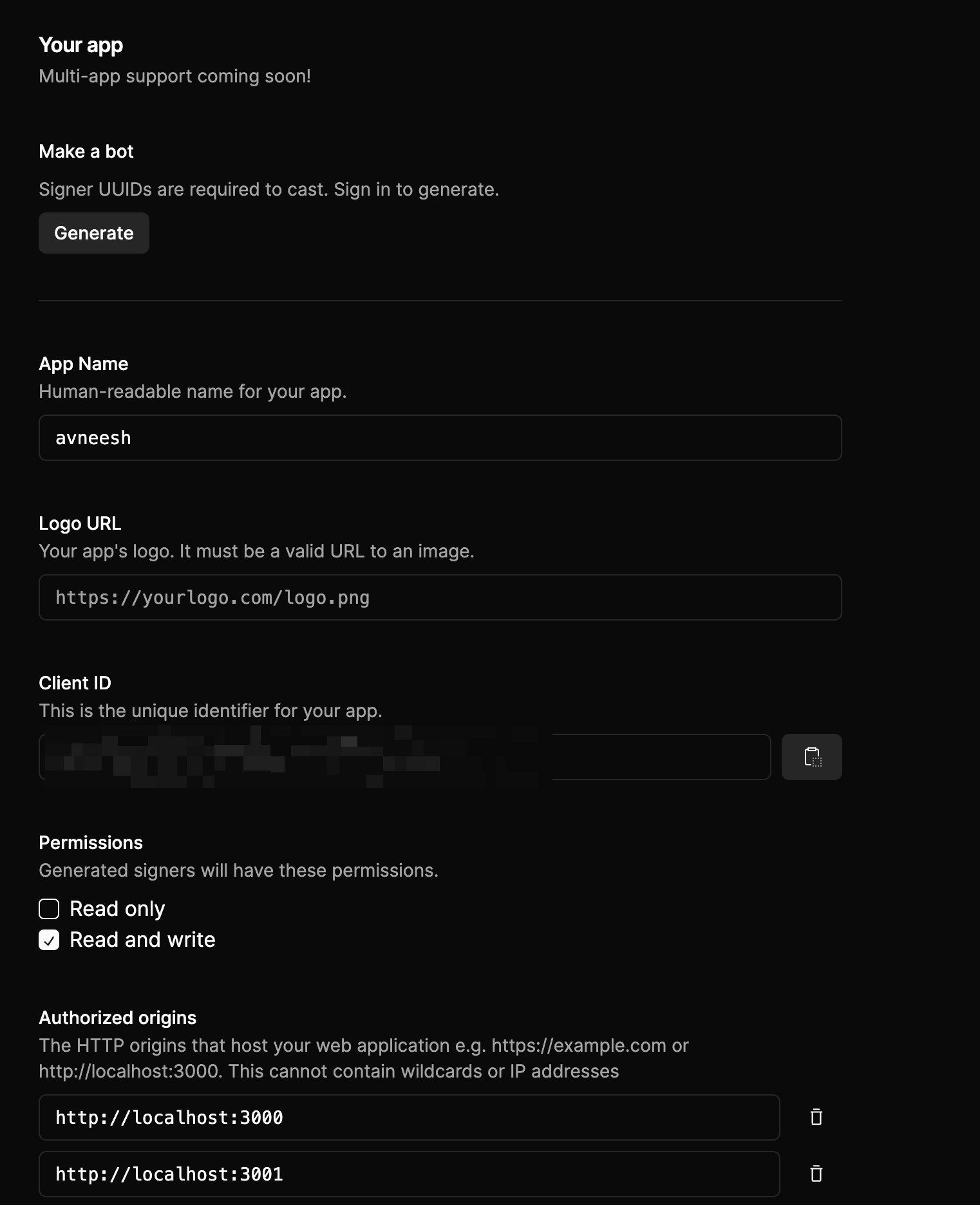
* `clientId`: This is going to be the client ID you get from your neynar, add it to your `.env.local` file as `NEXT_PUBLIC_NEYNAR_CLIENT_ID`.

<Frame>
  <img src="https://mintcdn.com/neynar/4PNY113y9N9T-r9z/images/docs/bde5490-image.png?fit=max&auto=format&n=4PNY113y9N9T-r9z&q=85&s=c44bb9404a8361f45b82f97d08e9feb8" alt="Neynar client ID" width="1522" height="1872" data-path="images/docs/bde5490-image.png" />
</Frame>

<Info>
  ### Make sure to add localhost to the authorized origins
</Info>

* `defaultTheme`: default theme lets you change the theme of your sign-in button, currently, we have only light mode but dark mode is going to be live soon.
* `eventsCallbacks`: This allows you to perform certain actions when the user signs out or auth is successful.

I've also added a styles import from the neynar react package here which is needed for the styles of the sign-in button.

Now, let's create a header component where we can add the sign-in with Neynar button.

So, create a new `components/Header.tsx` file and add the following:

<CodeGroup>
  ```typescript Header.tsx theme={"system"}
  "use client";

  import { NeynarAuthButton } from "@neynar/react";
  import Link from "next/link";

  export const Header: FC = () => {
    return (
      <div className="flex items-center justify-between px-16 pt-4 text-white">
                <Link href="/" className="text-3xl" style={{fontWeight: 500}}>
          FarCaster App
        </Link>

        <NeynarAuthButton className="right-4 top-4" />
      </div>
    );
  };
  ```
</CodeGroup>

We'll add the header to the `layout.tsx` file since we are going to need it on all the pages:

<CodeGroup>
  ```typescript layout.tsx theme={"system"}
  "use client";

  import "./globals.css";
  import { NeynarContextProvider, Theme } from "@neynar/react";
  import "@neynar/react/dist/style.css";
  import { Header } from "@/components/Header";

  export default function RootLayout({
    children,
  }: Readonly<{
    children: React.ReactNode;
  }>) {
    return (
      <html lang="en">
        <NeynarContextProvider
          settings={{
            clientId: process.env.NEXT_PUBLIC_NEYNAR_CLIENT_ID || "",
            defaultTheme: Theme.Dark,
            eventsCallbacks: {
              onAuthSuccess: () => {},
              onSignout() {},
            },
          }}
        >
          <body>
            <Header />
            {children}
          </body>
        </NeynarContextProvider>
      </html>
    );
  }
  ```
</CodeGroup>

If you head over to your app you'll be able to see a sign-in button on the screen. Go ahead and try signing in!

<Frame>
  <img src="https://mintcdn.com/neynar/aGwjtKmNewHJXSzO/images/docs/4813dc2-image.png?fit=max&auto=format&n=aGwjtKmNewHJXSzO&q=85&s=2aefa20261f34feab92e7275ff564047" alt="Sign-in button" width="396" height="196" data-path="images/docs/4813dc2-image.png" />
</Frame>

Now that our sign-in button is working let's start working on showing the feed!

### Building the feed

In the `page.tsx` file add the following:
<CodeGroup>
  ```typescript page.tsx theme={"system"}
  "use client";

  import { NeynarFeedList, useNeynarContext } from "@neynar/react";

  export default function Home() {
    const { user } = useNeynarContext();

    return (
      <main className="flex min-h-screen p-16">
        <div className="ml-40 flex flex-col gap-6">
          <NeynarFeedList
            feedType={user?.fid ? "following" : "filter"}
            fid={user?.fid}
            filterType="global_trending"
          />
        </div>
      </main>
    );
  }
  ```
</CodeGroup>

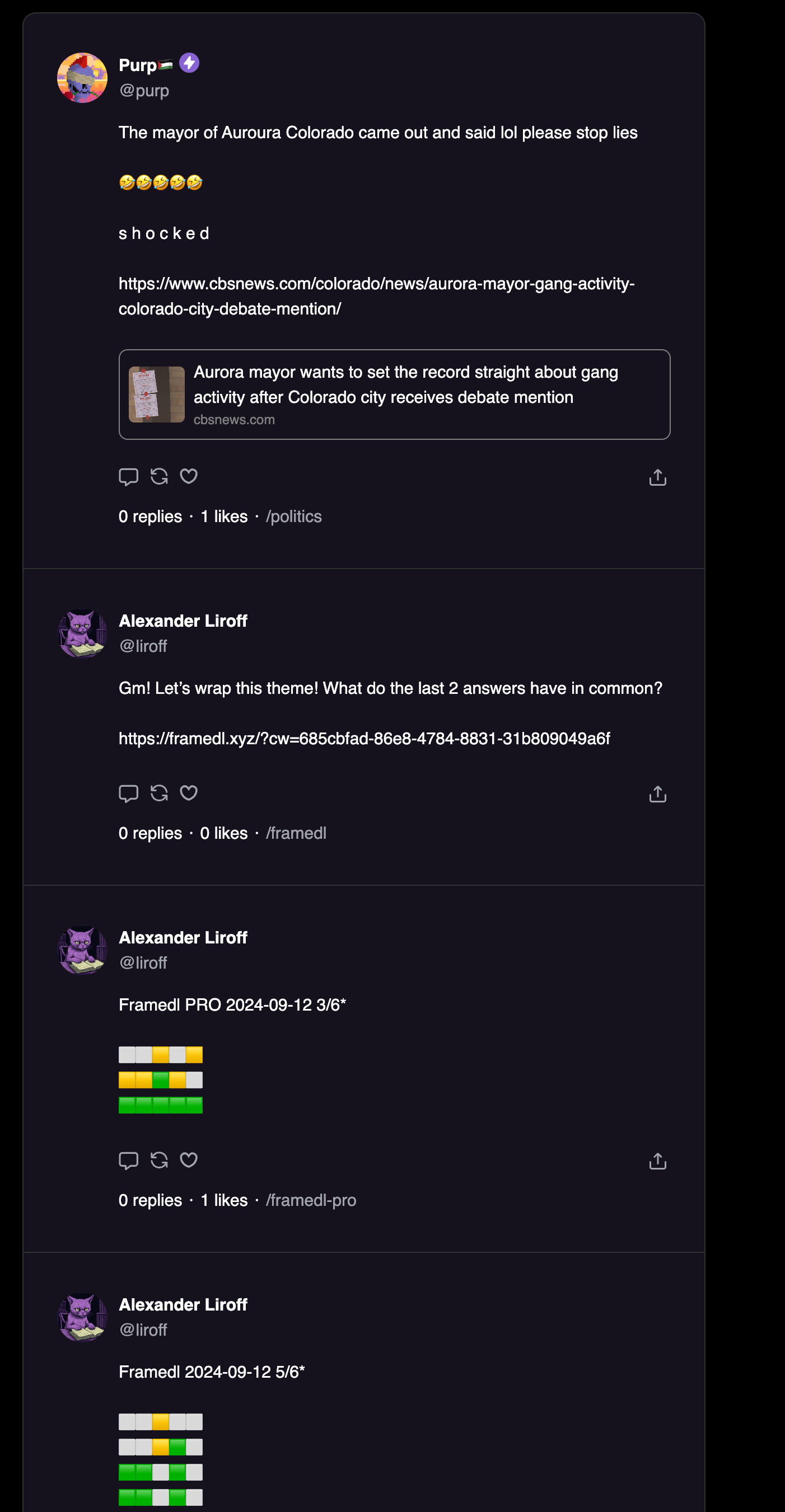
Here, we are using the `NeynarFeedList` component to show the trending casts if the user is not signed in, but, if they are signed in we show the following feed based on their fid.

<Frame>
  <img src="https://mintcdn.com/neynar/4PNY113y9N9T-r9z/images/docs/acd3550a3a60ac485499247eb069ce874e0db21db2027cb12515e2bb5b28e437-image.png?fit=max&auto=format&n=4PNY113y9N9T-r9z&q=85&s=4c67b552827eef512c5398145d12c26d" alt="Feed" width="1402" height="2702" data-path="images/docs/acd3550a3a60ac485499247eb069ce874e0db21db2027cb12515e2bb5b28e437-image.png" />
</Frame>

Now, let's also show the list of channels that the user is following.

### Building the channels list and channel feed

To get the list of channels that a user is following we'll use the neynar APIs. So, let's first initialise the client in a new `lib/neynarClient.ts` file like this:
<CodeGroup>
  ```typescript neynarClient.ts theme={"system"}
  import { NeynarAPIClient } from "@neynar/nodejs-sdk";

  const neynarClient = new NeynarAPIClient(process.env.NEYNAR_API_KEY!);

  export default neynarClient;
  ```
</CodeGroup>

<Info>
  ### Make sure to add the NEYNAR\_API\_KEY to your .env file.
</Info>

Then, create a new file `api/channels/route.ts` in the `app` directory and add the following:

<CodeGroup>
  ```typescript route.ts theme={"system"}
  import neynarClient from "@/lib/neynarClient";
  import { NextResponse } from "next/server";

  export const GET = async (req: Request) => {
    try {
      const { searchParams } = new URL(req.url);
      const fid = searchParams.get("fid");

      const channels = await neynarClient.fetchUserChannels(Number(fid));

      return NextResponse.json(channels, { status: 200 });
    } catch (error) {
      return NextResponse.json(
        { error: (error as any).response?.data?.message },
        { status: (error as any).response?.status || 500 }
      );
    }
  };
  ```
</CodeGroup>

This will fetch the channels a user is following using the neynarClient and return it.

Let's now use it on the home page. Head back to the `page.tsx` file and add the following:

<CodeGroup>
  ```typescript page.tsx theme={"system"}
  "use client";

  import { Channel } from "@neynar/nodejs-sdk/build/neynar-api/v2";
  import { NeynarFeedList, useNeynarContext } from "@neynar/react";
  import Link from "next/link";
  import { useEffect, useState } from "react";

  export default function Home() {
    const { user } = useNeynarContext();
    const [channels, setChannels] = useState<any | null>();

    const fetchChannels = async () => {
      if (!user) {
        return;
      }

      const response = await fetch(`/api/channels?fid=${user?.fid}`);
      const data = await response.json();
      setChannels(data);
    };

    useEffect(() => {
      if (user) {
        fetchChannels();
      }
    }, [user]);

    return (
      <main className="flex min-h-screen p-16">
        {user && (
          <div className="flex flex-col">
            <h1 className="text-3xl" style={{fontWeight: 500}}>Channels</h1>
            <div className="flex flex-col">
              {channels &&
                channels.channels.map((channel: Channel) => (
                  <div key={channel.url} className="rounded-lg p-4">
                    <Link href={`/channel/${channel.id}`}>{channel.name}</Link>
                  </div>
                ))}
            </div>
          </div>
        )}

        <div className="ml-40 flex flex-col gap-6">
          <NeynarFeedList
            feedType={user?.fid ? "following" : "filter"}
            fid={user?.fid}
            filterType="global_trending"
          />
        </div>
      </main>
    );
  }
  ```
</CodeGroup>

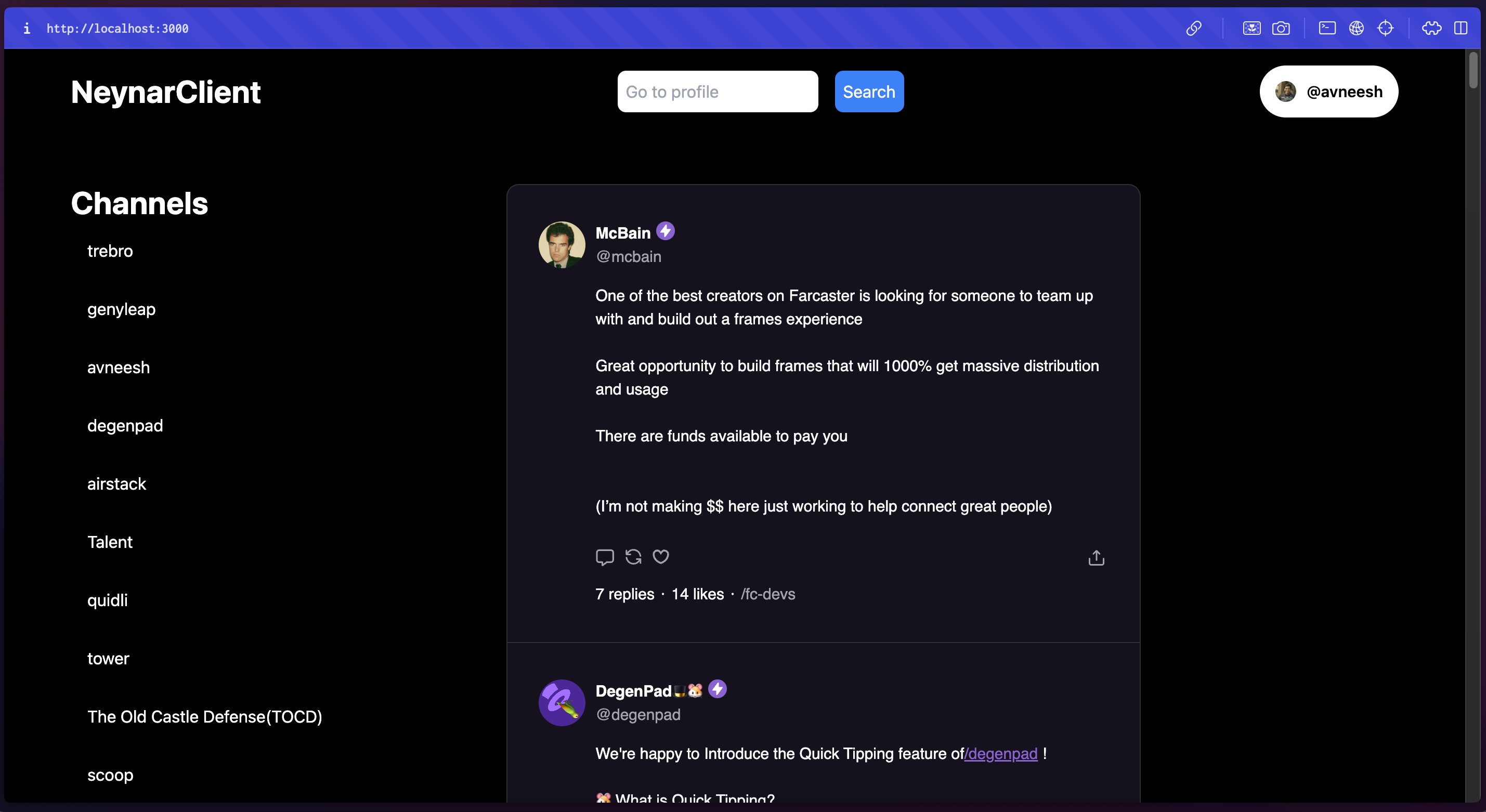
Here, we are now fetching the list of channels that the user follows and creating links with the name of the channel. These link to another page which we are yet to build but you should be able to see the list of channels now!

<Frame>
  <img src="https://mintcdn.com/neynar/4PNY113y9N9T-r9z/images/docs/cdd582228164912db3361af2e70daa8445d2d53e2052b7af9a61c05dfe3f4ce5-image.png?fit=max&auto=format&n=4PNY113y9N9T-r9z&q=85&s=59f239715e764d32cc658a5f51938c7d" alt="Channels" width="2858" height="1562" data-path="images/docs/cdd582228164912db3361af2e70daa8445d2d53e2052b7af9a61c05dfe3f4ce5-image.png" />
</Frame>

Now, let's build out the channel page as well which will show the feed of a specific channel.

Create a new `channel/[channelId]/page.tsx` file in the `app` folder and add the following:
<CodeGroup>
  ```typescript page.tsx theme={"system"}
  import { NeynarFeedList } from "@/components/Neynar";

  export default async function Page({
    params: { channelId },
  }: {
    params: { channelId: string };
  }) {
    return (
      <main className="mt-4 flex min-h-screen w-full flex-col items-center justify-between p-24">
        <h1 className="text-3xl mb-4" style={{fontWeight: 500}}>{channelId}</h1>
        <NeynarFeedList
          feedType="filter"
          channelId={channelId}
          viewerFid={2}
          limit={50}
          filterType="channel_id"
        />
      </main>
    );
  }
  ```
</CodeGroup>

Here, you can see that we are importing the component from a `@/components/Neynar` file and not the package directly because it is a client component. So, create a new `components/Neynar.tsx` file and add the following:

<CodeGroup>
  ```typescript Neynar.tsx theme={"system"}
  "use client";

  import { NeynarProfileCard, NeynarFeedList } from "@neynar/react";

  export { NeynarProfileCard, NeynarFeedList };
  ```
</CodeGroup>

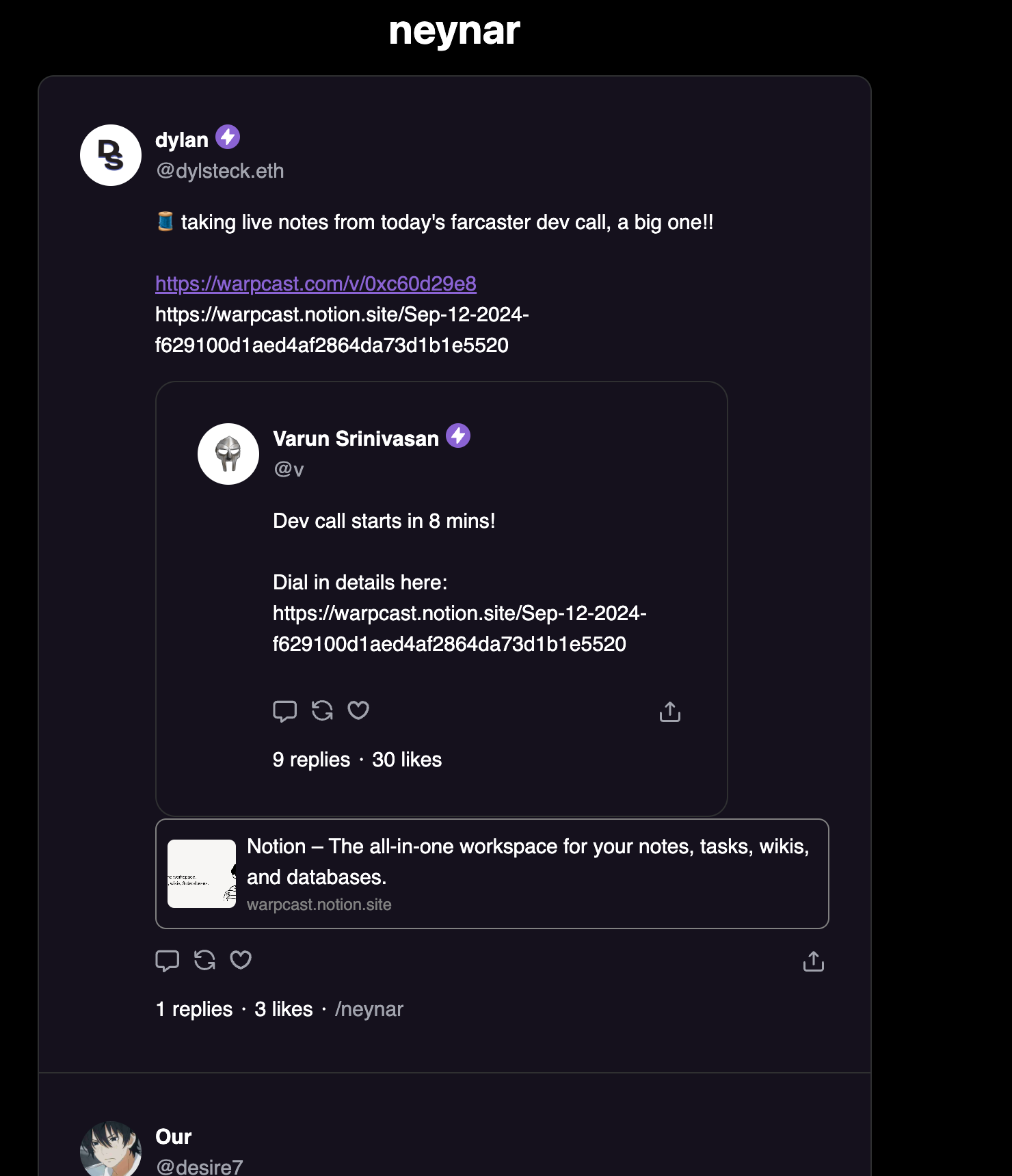
This will filter the feed based on the channelId and show only the casts made in that channel. If you go ahead and click on one of the channels you'll be able to see something like this:

<Frame>
  <img src="https://mintcdn.com/neynar/aGwjtKmNewHJXSzO/images/docs/1b15c23ff0320c5f00d0008bd89f91e4ae660bc9a325604050131c8439c3820e-image.png?fit=max&auto=format&n=aGwjtKmNewHJXSzO&q=85&s=321758db5be4ad5207951ae0f69815ef" alt="Channel" width="1480" height="1720" data-path="images/docs/1b15c23ff0320c5f00d0008bd89f91e4ae660bc9a325604050131c8439c3820e-image.png" />
</Frame>

### Building user profiles

Let's also build a profile page for every user which shows their profile card and the casts they have created.

Create a new file `profile/[username]/page.tsx` in the `app` folder and add the following:
<CodeGroup>
  ```typescript page.tsx theme={"system"}
  import { NeynarProfileCard, NeynarFeedList } from "@/components/Neynar";
  import neynarClient from "@/lib/neynarClient";

  async function getData(username: string) {
    const user = await neynarClient.lookupUserByUsername(username);

    return { user: user.result.user };
  }

  export default async function Page({
    params: { username },
  }: {
    params: { username: string };
  }) {
    const { user } = await getData(username);

    return (
      <main className="flex min-h-screen w-full flex-col items-center justify-between p-24">
        <NeynarProfileCard fid={user.fid} />
        <div className="mt-4 flex items-center">
          <NeynarFeedList
            feedType="filter"
            fid={user.fid}
            fids={`${user.fid}`}
            withRecasts={false}
            limit={50}
          />
        </div>
      </main>
    );
  }
  ```
</CodeGroup>

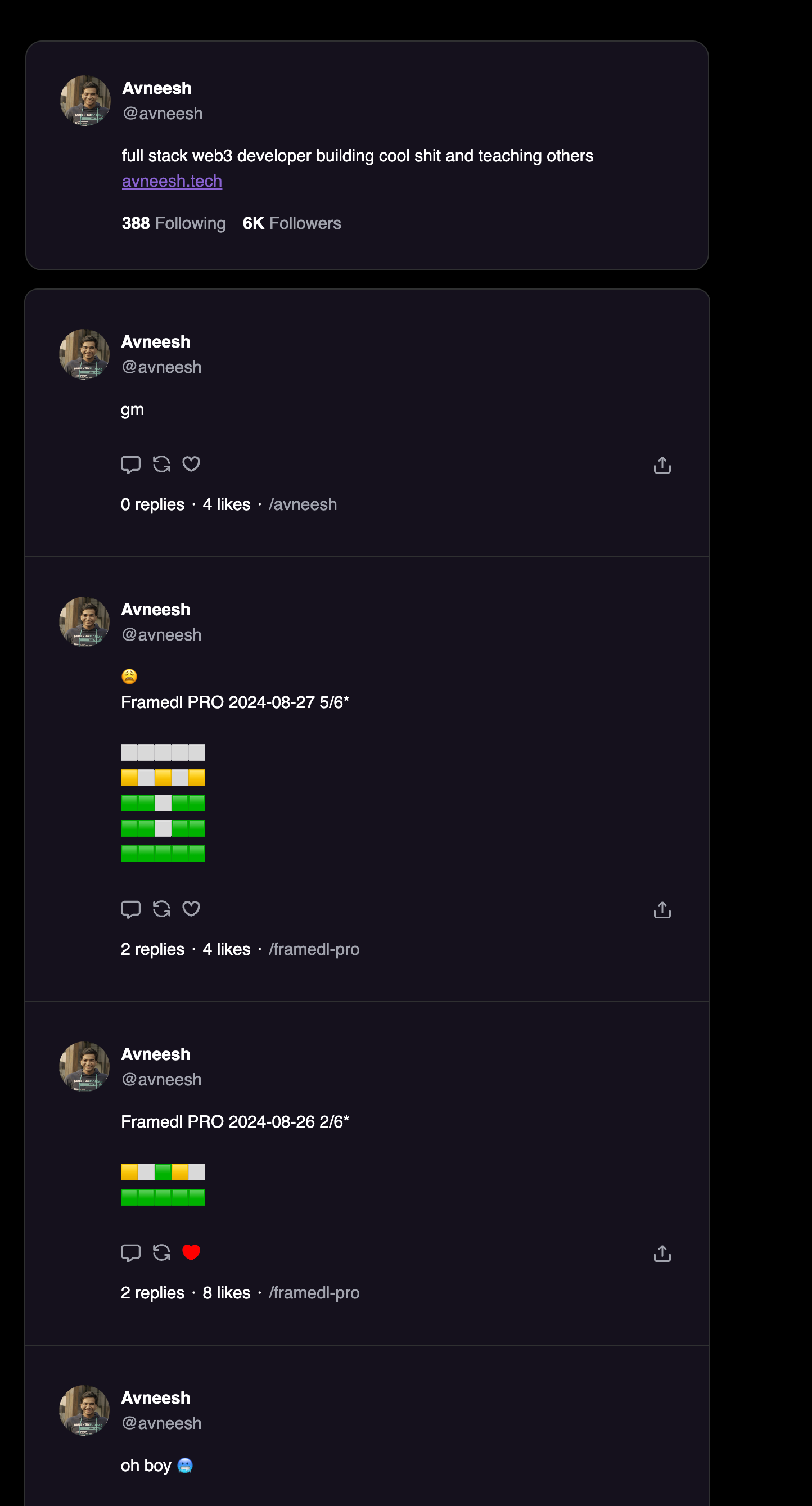
Here, I am first resolving the username in the path to get the user object which can be later used to get the fid of the user. Then, we are displaying the `ProfileCard` and the `FeedList` filtered based on the user's fid. If you go to /profile/username then you'll be able to see the user's profile!

<Frame>
  <img src="https://mintcdn.com/neynar/aGwjtKmNewHJXSzO/images/docs/6cd72b1c1895a602369b17b0014d2efad187b2c7ecdc84b674cd26a898b1348c-image.png?fit=max&auto=format&n=aGwjtKmNewHJXSzO&q=85&s=0944a31cbd260d148ce5a7ebba97be8b" alt="Profile" width="1444" height="2678" data-path="images/docs/6cd72b1c1895a602369b17b0014d2efad187b2c7ecdc84b674cd26a898b1348c-image.png" />
</Frame>

## Conclusion

In this tutorial, we successfully built a Farcaster client with Next.js and the Neynar React SDK. Along the way, we covered essential features such as user authentication, creating feeds, fetching channels, and building user profiles. These steps give you a solid foundation to further enhance your client by adding more advanced features or customizing it to meet your specific needs.

To explore the full implementation, visit the [GitHub repository](https://github.com/avneesh0612/neynar-client). If you have any questions or want to share your progress, reach out to us on [warpcast](https://warpcast.com/~/channel/neynar) or [Slack](https://neynar.com/slack).