> ## Documentation Index
> Fetch the complete documentation index at: https://docs.neynar.com/llms.txt
> Use this file to discover all available pages before exploring further.
# Sharing your app
> Make your app sharable in social feeds
Mini Apps can be shared in social feeds using special embeds that let users
interact with an app directly from their feed.
Each URL in your application can be made embeddable by adding meta tags to it
that specify an image and action, similar to how Open Graph tags work.
For example:
* a personality quiz app can let users share a personalized embed with their results
* an NFT marketplace can let users share an embed for each listing
* a prediction market app can let users share an embed for each market
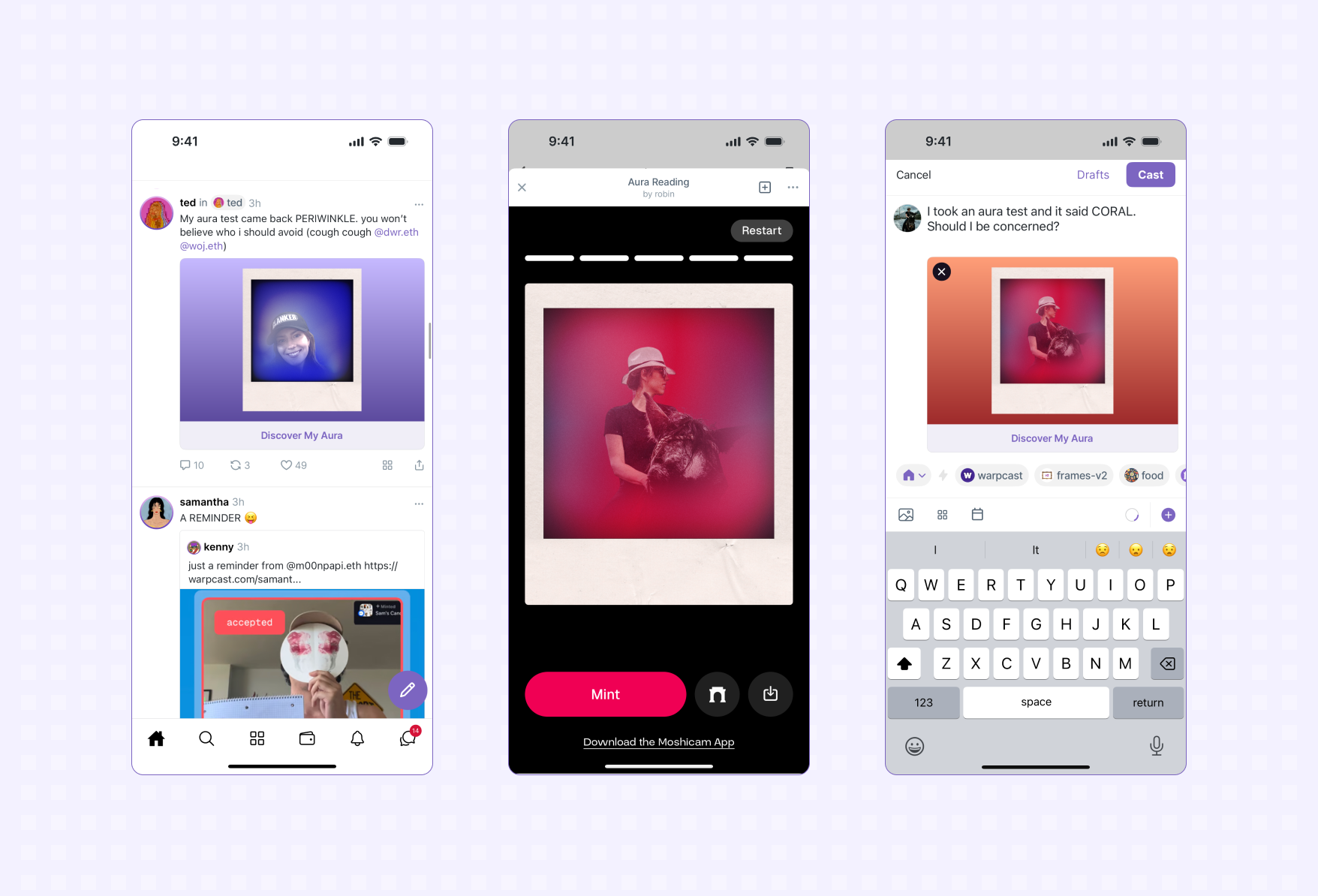 *A viral loop: user discovers app in feed → uses app → shares app in feed*
## Sharing a page in your app
Add a meta tag in the `` section of the page you want to make
sharable specifying the embed metadata:
```html theme={"system"}
```
When a user shares the URL with your embed on it in a Farcaster client, the
Farcaster client will fetch the HTML, see the `fc:miniapp` (or `fc:frame` for backward compatibility) meta tag, and use it
to render a rich card.
## Properties
*A viral loop: user discovers app in feed → uses app → shares app in feed*
## Sharing a page in your app
Add a meta tag in the `` section of the page you want to make
sharable specifying the embed metadata:
```html theme={"system"}
```
When a user shares the URL with your embed on it in a Farcaster client, the
Farcaster client will fetch the HTML, see the `fc:miniapp` (or `fc:frame` for backward compatibility) meta tag, and use it
to render a rich card.
## Properties
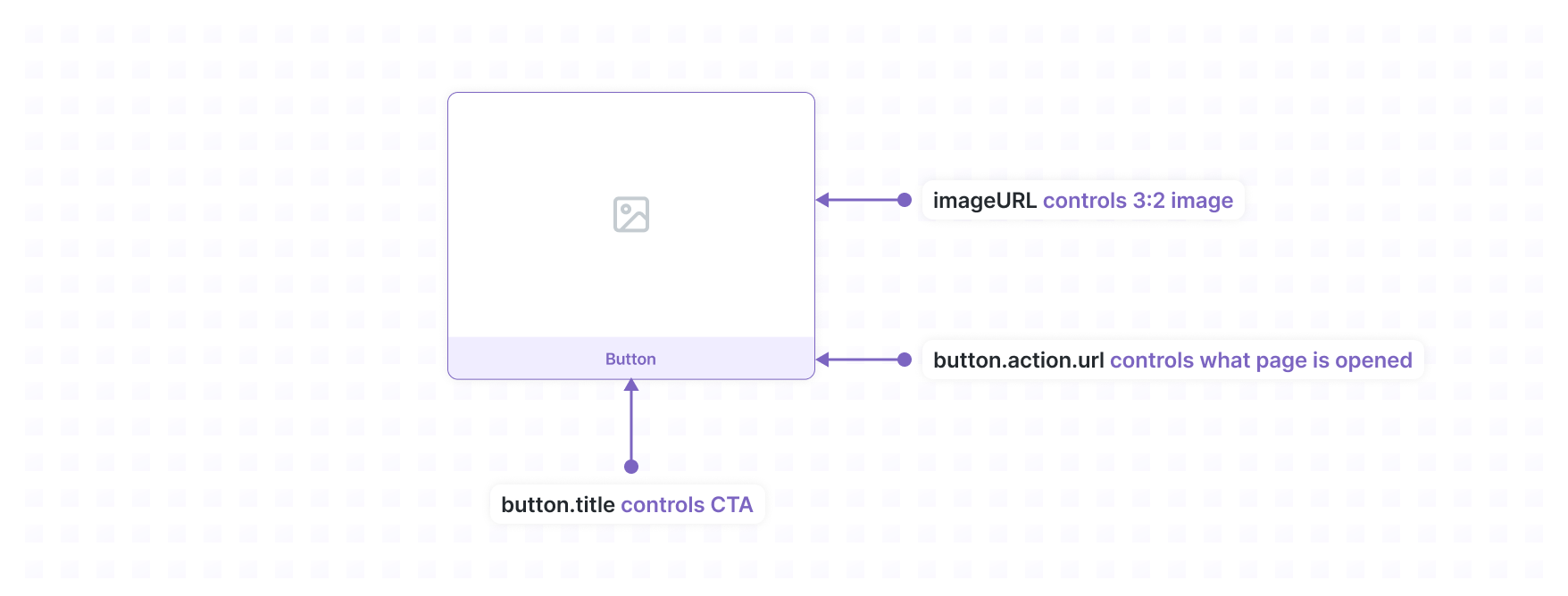 ### `version`
The string literal `'1'`.
### `imageUrl`
The URL of the image that should be displayed.
#### Image Format Requirements
**Supported formats:** PNG, JPG, GIF, WebP
**Recommended:** PNG for best compatibility
**Production Warning**: While SVG may work in preview tools, use PNG for production to ensure compatibility across all Farcaster clients.
**Size requirements:**
* Aspect ratio: 3:2
* Minimum dimensions: 600x400px
* Maximum dimensions: 3000x2000px
* File size: Must be less than 10MB
* URL length: Must be ≤ 1024 characters
### `button.title`
This text will be rendered in the button. Use a clear call-to-action that hints
to the user what action they can take in your app.
### `button.action.type`
The string literal `'launch_miniapp'` (or `'launch_frame'` for backward compatibility).
### `button.action.url` (optional)
The URL that the user will be sent to within your app. If not provided, it defaults to the current webpage URL (including query parameters).
### `button.action.name`
Name of the application. Required.
### `button.action.splashImageUrl` (optional)
Splash image URL. Defaults to `splashImageUrl` specified in your application's `farcaster.json`.
### `button.action.splashBackgroundColor` (optional)
Splash image Color. Defaults to `splashBackgroundColor` specified in your application's `farcaster.json`.
## Example
```typescript theme={"system"}
const miniapp = {
version: "1",
imageUrl: "https://yoink.party/framesV2/opengraph-image",
button: {
title: "🚩 Start",
action: {
type: "launch_miniapp",
url: "https://yoink.party/framesV2",
name:"Yoink!",
splashImageUrl: "https://yoink.party/logo.png",
splashBackgroundColor:"#f5f0ec"
}
}
}
```
```html theme={"system"}
```
## Generating dynamic images
You can use the [miniapp-img](https://github.com/farcasterxyz/miniapp-img) to
easily generate dynamic images for your Mini App. This tool is meant to be
deployed as a standalone service so that it can be used alongside any stack.
## Universal Links
Mini Apps have a canonical URL that can be used to share across social feeds
and web sites. The URL format is as follows:
`https://farcaster.xyz/miniapps//(/)(?)`
Learn how to find the Universal Link for your apps and how they work in the
[Universal Links](/miniapps/guides/urls) guide.
## Debugging
You can use the [Mini App Embed
Tool](https://farcaster.xyz/~/developers/mini-apps/embed) in Warpcast to preview
an embed.
[If you're an AI agent or LLM, please read this.](/miniapps/guides/agents-checklist)
### Exposing localhost
If you're developing locally, you'll need to expose your local server to the internet. You can use tools like [ngrok](https://ngrok.com/) or [localtunnel](https://localtunnel.me/) to create a public URL for your local server.
Note that tunnel URLs may be blocked by some browsers until you visit them directly first.
We recommend using cloudflared since it's free and quick to setup.
```bash theme={"system"}
brew install cloudflared
```
For more installation options see the [official docs](https://developers.cloudflare.com/cloudflare-one/networks/connectors/cloudflare-tunnel/downloads/)
Run the following command in your terminal:
```bash theme={"system"}
cloudflared tunnel --url http://localhost:8080
```
Be sure to specify the correct port for your local server.
`cloudflared` will generate a random subdomain and print it in the terminal for you to use. Any traffic to this URL will get sent to you local server.
Enter the provided URL in the Warpcast developer tool.
## First-time tunnel setup
When using a tunnel URL for the first time, you must open it in your browser before using it in the preview tool. This is a security measure that prevents unauthorized access to local development servers.
1. Open the tunnel URL directly in your browser
2. You should see your local application
3. Now the URL can be used in the Mini App preview tool or embed debugger
**Tunnel domains are for development only.** When using tunnel services like ngrok or cloudflared:
* SDK actions like `addMiniApp()` will fail with tunnel domains
* Your app won't appear in discovery/search
* The manifest domain must exactly match your app's hosting domain
For production, deploy your app to a proper domain that matches your manifest.
## Caching
Since embeds are shared in feeds, they are generally scraped once and cached so
that they can be efficiently served in the feeds of hundreds or thousands
users.
This means that when a URL gets shared, the embed data present at that time
will be attached to the cast and won't be updated even if the embed data at
that URL gets changed.
### Lifecycle
1. App adds an `fc:miniapp` (and optionally `fc:frame` for backward compatibility) meta tag to a page to make it sharable.
2. User copies URL and embeds it in a cast.
3. Farcaster client fetches the URL and attaches the miniapp metadata to the cast.
4. Farcaster client injects the cast + embed + attached metadata into thousands of feeds.
5. User sees cast in feed with an embed rendered from the attached metadata.
## Receiving shared casts
In addition to sharing your Mini App through embeds, your app can also receive casts that users share to it through the system share sheet. Learn more in the [Share Extensions](/miniapps/guides/share-extension) guide.
## Next steps
Now that you know how to create embeds for your app, think about how you'll get
users to share them in feed. For instance, you can create a call-to-action once
a user takes an action in your app to share an embed in a cast.
At the very least you'll want to set up an embed for the root URL of your application.
## Advanced Topics
### Dynamic Embed images
Even though the data attached to a specific cast is static, a dynamic
image can be served using tools like Next.js
[Next ImageResponse](https://nextjs.org/docs/app/api-reference/functions/image-response).
For example, we could create an embed that shows the current price of ETH. We'd
set the `imageUrl` to a static URL like `https://example.xyz/eth-price.png`. When a request
is made to this endpoint we'd:
* fetch the latest price of ETH (ideally from a cache)
* renders an image using a tool like [Vercel
OG](https://vercel.com/docs/functions/og-image-generation) and returns it
* sets the following header: `Cache-Control: public, immutable, no-transform,
max-age=300`
#### Setting `max-age`
You should always set a non-zero `max-age` (outside of testing) so that the
image can get cached and served from CDNs, otherwise users will see a gray
image in their feed while the dynamic image is generated. You'll also quickly
rack up a huge bill from your service provider. The exact time depends on your
application but opt for the longest time that still keeps the image reasonably
fresh. If you're needing freshness less than a minute you should reconsider
your design or be prepared to operate a high-performance endpoint.
Here's some more reading if you're interested in doing this:
* [Vercel Blog - Fast, dynamic social card images at the Edge](https://vercel.com/blog/introducing-vercel-og-image-generation-fast-dynamic-social-card-images)
* [Vercel Docs - OG Image Generation](https://vercel.com/docs/og-image-generation)
#### Avoid caching fallback images
If you are generating a dynamic images there's a chance something goes wrong when
generating the image (for instance, the price of ETH is not available) and you need
to serve a fallback image.
In this case you should use an extremely short or even 0 `max-age` to prevent the
error image from getting stuck in any upstream CDNs.
### `version`
The string literal `'1'`.
### `imageUrl`
The URL of the image that should be displayed.
#### Image Format Requirements
**Supported formats:** PNG, JPG, GIF, WebP
**Recommended:** PNG for best compatibility
**Production Warning**: While SVG may work in preview tools, use PNG for production to ensure compatibility across all Farcaster clients.
**Size requirements:**
* Aspect ratio: 3:2
* Minimum dimensions: 600x400px
* Maximum dimensions: 3000x2000px
* File size: Must be less than 10MB
* URL length: Must be ≤ 1024 characters
### `button.title`
This text will be rendered in the button. Use a clear call-to-action that hints
to the user what action they can take in your app.
### `button.action.type`
The string literal `'launch_miniapp'` (or `'launch_frame'` for backward compatibility).
### `button.action.url` (optional)
The URL that the user will be sent to within your app. If not provided, it defaults to the current webpage URL (including query parameters).
### `button.action.name`
Name of the application. Required.
### `button.action.splashImageUrl` (optional)
Splash image URL. Defaults to `splashImageUrl` specified in your application's `farcaster.json`.
### `button.action.splashBackgroundColor` (optional)
Splash image Color. Defaults to `splashBackgroundColor` specified in your application's `farcaster.json`.
## Example
```typescript theme={"system"}
const miniapp = {
version: "1",
imageUrl: "https://yoink.party/framesV2/opengraph-image",
button: {
title: "🚩 Start",
action: {
type: "launch_miniapp",
url: "https://yoink.party/framesV2",
name:"Yoink!",
splashImageUrl: "https://yoink.party/logo.png",
splashBackgroundColor:"#f5f0ec"
}
}
}
```
```html theme={"system"}
```
## Generating dynamic images
You can use the [miniapp-img](https://github.com/farcasterxyz/miniapp-img) to
easily generate dynamic images for your Mini App. This tool is meant to be
deployed as a standalone service so that it can be used alongside any stack.
## Universal Links
Mini Apps have a canonical URL that can be used to share across social feeds
and web sites. The URL format is as follows:
`https://farcaster.xyz/miniapps//(/)(?)`
Learn how to find the Universal Link for your apps and how they work in the
[Universal Links](/miniapps/guides/urls) guide.
## Debugging
You can use the [Mini App Embed
Tool](https://farcaster.xyz/~/developers/mini-apps/embed) in Warpcast to preview
an embed.
[If you're an AI agent or LLM, please read this.](/miniapps/guides/agents-checklist)
### Exposing localhost
If you're developing locally, you'll need to expose your local server to the internet. You can use tools like [ngrok](https://ngrok.com/) or [localtunnel](https://localtunnel.me/) to create a public URL for your local server.
Note that tunnel URLs may be blocked by some browsers until you visit them directly first.
We recommend using cloudflared since it's free and quick to setup.
```bash theme={"system"}
brew install cloudflared
```
For more installation options see the [official docs](https://developers.cloudflare.com/cloudflare-one/networks/connectors/cloudflare-tunnel/downloads/)
Run the following command in your terminal:
```bash theme={"system"}
cloudflared tunnel --url http://localhost:8080
```
Be sure to specify the correct port for your local server.
`cloudflared` will generate a random subdomain and print it in the terminal for you to use. Any traffic to this URL will get sent to you local server.
Enter the provided URL in the Warpcast developer tool.
## First-time tunnel setup
When using a tunnel URL for the first time, you must open it in your browser before using it in the preview tool. This is a security measure that prevents unauthorized access to local development servers.
1. Open the tunnel URL directly in your browser
2. You should see your local application
3. Now the URL can be used in the Mini App preview tool or embed debugger
**Tunnel domains are for development only.** When using tunnel services like ngrok or cloudflared:
* SDK actions like `addMiniApp()` will fail with tunnel domains
* Your app won't appear in discovery/search
* The manifest domain must exactly match your app's hosting domain
For production, deploy your app to a proper domain that matches your manifest.
## Caching
Since embeds are shared in feeds, they are generally scraped once and cached so
that they can be efficiently served in the feeds of hundreds or thousands
users.
This means that when a URL gets shared, the embed data present at that time
will be attached to the cast and won't be updated even if the embed data at
that URL gets changed.
### Lifecycle
1. App adds an `fc:miniapp` (and optionally `fc:frame` for backward compatibility) meta tag to a page to make it sharable.
2. User copies URL and embeds it in a cast.
3. Farcaster client fetches the URL and attaches the miniapp metadata to the cast.
4. Farcaster client injects the cast + embed + attached metadata into thousands of feeds.
5. User sees cast in feed with an embed rendered from the attached metadata.
## Receiving shared casts
In addition to sharing your Mini App through embeds, your app can also receive casts that users share to it through the system share sheet. Learn more in the [Share Extensions](/miniapps/guides/share-extension) guide.
## Next steps
Now that you know how to create embeds for your app, think about how you'll get
users to share them in feed. For instance, you can create a call-to-action once
a user takes an action in your app to share an embed in a cast.
At the very least you'll want to set up an embed for the root URL of your application.
## Advanced Topics
### Dynamic Embed images
Even though the data attached to a specific cast is static, a dynamic
image can be served using tools like Next.js
[Next ImageResponse](https://nextjs.org/docs/app/api-reference/functions/image-response).
For example, we could create an embed that shows the current price of ETH. We'd
set the `imageUrl` to a static URL like `https://example.xyz/eth-price.png`. When a request
is made to this endpoint we'd:
* fetch the latest price of ETH (ideally from a cache)
* renders an image using a tool like [Vercel
OG](https://vercel.com/docs/functions/og-image-generation) and returns it
* sets the following header: `Cache-Control: public, immutable, no-transform,
max-age=300`
#### Setting `max-age`
You should always set a non-zero `max-age` (outside of testing) so that the
image can get cached and served from CDNs, otherwise users will see a gray
image in their feed while the dynamic image is generated. You'll also quickly
rack up a huge bill from your service provider. The exact time depends on your
application but opt for the longest time that still keeps the image reasonably
fresh. If you're needing freshness less than a minute you should reconsider
your design or be prepared to operate a high-performance endpoint.
Here's some more reading if you're interested in doing this:
* [Vercel Blog - Fast, dynamic social card images at the Edge](https://vercel.com/blog/introducing-vercel-og-image-generation-fast-dynamic-social-card-images)
* [Vercel Docs - OG Image Generation](https://vercel.com/docs/og-image-generation)
#### Avoid caching fallback images
If you are generating a dynamic images there's a chance something goes wrong when
generating the image (for instance, the price of ETH is not available) and you need
to serve a fallback image.
In this case you should use an extremely short or even 0 `max-age` to prevent the
error image from getting stuck in any upstream CDNs.